Wednesday, February 21, 2018

iOS - Fix Massive View Controller using MVP+VM Architecture

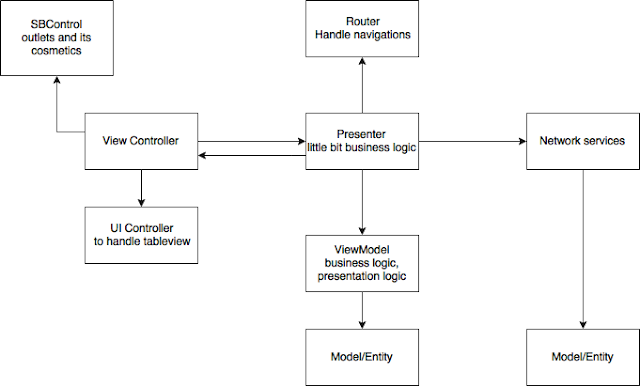
To solve the Massive View Controller, we distribute the tasks to different classes:

1. Router


  • The Router class will capable to handle all navigations such as segue or custom.
  • Capable to construct the view controller
  • Capable to pass data to other view controllers

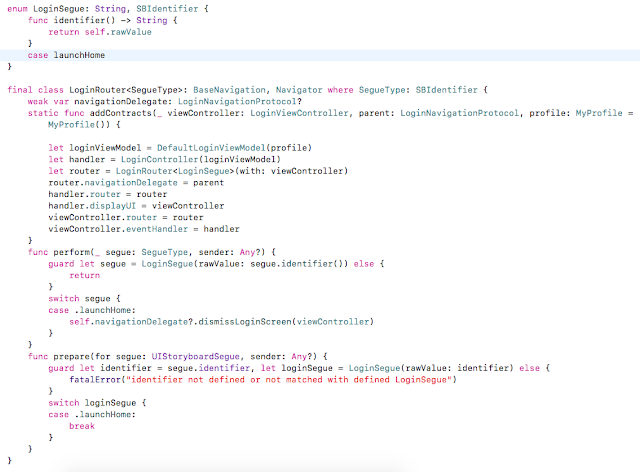
A sample Router class is shown below:


So we will always call addContracts() function when ever construct a view controller

func showLoginByRemove(_ viewController: UIViewController?) {
        let loginController = LoginViewController.getController()
        LoginRouter.addContracts(loginController, parent: self, profile: MyProfile())
        transition(fromVC: viewController, animationDuration: 0.5, toVC: loginController)
}

2. SBControl
    This class will keep all storyboard controls, and its makeups such as setting font, colours and localised texts and animations etc..

I am not repeating how to do this, Its well explained here see the section "Solution 2: Presentation Controls"

So
The VC (View Controller) can have minimum one IBOutlet reference to the Object control.

3. Presenter  - implements UIEvents protocol
    Responsible to handle user actions from View Controller. This is just a dispatcher. Handle a little business logics. Presenter will ask to viewmodel to perform the data manipulations and will return the result to the view controller using the DisplayUI protocol which is implemented by View Controller.
    Presenter will give the navigation task to the router
    Presenter will give the display task to the view controller
    Presenter will give the network operations to the service class

4. Service - optional
     Responsible to all network operations. Presenter will hold a protocol reference which is implemented by Service class

5. ViewModel
     There will be separate view models for each view. It will be responsible to handle business logic as well as the presentation logic. Both will be grouped using protocols.

6. ViewController
    Responsible to the VC life cycle. Inform all UI actions to the Presenter. ViewController implements a DisplayUI protocol.

7. UIController (optional)
    Handle the tableview/collection/text view delegates here to reduce the code in View Controller and also to distribute the functionalities.


Following is the template to create the files.

https://github.com/davidpaul0880/Swift-Template

Can post more when get more free time..

But post comment if you have any questions, or need clarifications.

Tuesday, December 12, 2017

OpenOffice. - Freeze or Scroll Lock the first row or any row or column.

If you want to freeze first row, then select the second row and in menu. Window -> Freeze.

Convert Localizable.strings to a spread sheet or csv / xls file


"label.welcome" = "Welcome";//welcome message in splash screen


1. Rename the Localizable.strings file to Localizable.csv and open it in OpenOffice.

2. Give the separator as “=“ and //

Then we can save as it in our format such as .xls

Tuesday, July 11, 2017

Some iOS Interview Questions

1. What are the application states
2. UIViewController Life Cycle in the order. 
3. Whats the minimum number of constraints we need for a UIView
4. Whats the minimum number of constraints we need for a UIButton/UILabel/UIImageView
5. Can we create an app without using a UIViewController
6. spa size swift vs objc
7. performance swift vs objc
8. xml vs json
9. Swift server side
10. Tableview Prefetch protocol
11. GCD vs OperationQ
12. AssociatedType, Generic
13. Coredata - multithreading
14. Design patterns
15. MVVM
16. enum objc vs swift
17. Closure
18. weak vs unowned
19. open vs public

Monday, February 15, 2016

Error - You have selected the Production server, yet your Certificate does not appear to be the Production certificate! Please check to ensure you have the correct certificate!


This is the error got from our .NET team when trying to push messages to iOS device with AdHoc/AppStore profile.

The issue was with the certificate file (.p12). 

When we create certificate (.p12) , Always export like selecting the certificate only. see the attached image


Wednesday, December 16, 2015

Swift - Crash 'Bad Access' with Release mode Xcode 7.1.1

sortInPlace function of array is crashing when running on iOS8 6+ device. 

Its fixed with Xcode 7.2 version

Thursday, February 19, 2015

Malayalam Keyboard for iPhone and iPad


With Varamozhi, you can type in Manglish and you will see text in real Malayalam.

Varamozhi is now a custom Keyboard. Follow instructions in Setup & Usage to enable Keyboard.

https://itunes.apple.com/in/app/varamozhi/id514987251?mt=8

Sunday, December 28, 2014

Convert svg file to png file on Mac

To Convert an vector (.svg) file into a png file , we can use command line

Open Terminal application.

switch to the directory (use cd comand) where the svg file contain

qlmanage -t -s 1024 -o . myvectorfile.svg

This will create a png file named myvectorfile.svg.png with 1024*1024 dimension in the same folder.

* tested on Mac OS X 10.10.1

Monday, September 23, 2013

The app X was not installed on the iPad because the app could not be found.

We may get this error message when install application on iPad

here is a helpful link

http://www.imore.com/daily-tip-fix-app-apps-itunes

Or try to delete from the library and re-download them from the app store, then try again.

Thursday, May 9, 2013

Type malayalam on Mac machine

We can use the Keymagic application for OS X. Go to http://faisal.in/type-malayalam/ to download and install.

We can get the malayalam font RachanaMac from here

നന്à´¦ി. :)

Another helpful link for malayalam typing/reading  is www.33dots.com/index.php/web/to-read-and-type-malayalam.html

Wednesday, April 17, 2013

Xcode 4.6.2 - PCH file built from a different branch

After updating Xcode 4.6.2, got error like

error: PCH file built from a different branch ((clang-425.0.27)) than the compiler ((clang-425.0.28)) xcode 4.6.2

After do a Clean (Product -> Clean) its disappeared :)

Monday, December 17, 2012

iOS - Search or compare korean text

In our UItableView search, we are using the below code to search a typed text in the cell content

 NSComparisonResult result = [eachCellContent compare:searchText options:NSDiacriticInsensitiveSearch|NSCaseInsensitiveSearch range:NSMakeRange(0, [searchText length])];

This is working fine. But this is not working with korean text.

E.g:
suppose one of the cell text is "소".//we are getting this combination by typing these two letters   ã…… and ã…—
If we type ㅅ only , our compare method is not working and so not listing the "소". (it is working if we type both ㅅ and ㅗ )

But the above example is working well with AddressBook application.

Is there any other compare method to support this ? (we also need this NSDiacriticInsensitiveSearch|NSCaseInsensitiveSearch )

Updated on 2013-01-14

Got solution from stackoverflow

NSString *normalizedContent = [eachCellContent decomposedStringWithCanonicalMapping];
NSString *normalizedSearch = [searchText decomposedStringWithCanonicalMapping];
and then compare these.


NSString *eachCellContent = @"소";
NSString *searchText = @"ã……";

NSString *normalizedContent = [eachCellContent decomposedStringWithCanonicalMapping];
NSString *normalizedSearch = [searchText decomposedStringWithCanonicalMapping];

NSComparisonResult result = [normalizedContent compare:normalizedSearch
                                               options:NSDiacriticInsensitiveSearch|NSCaseInsensitiveSearch
                                                 range:NSMakeRange(0, [normalizedSearch length])
                                                locale:[NSLocale currentLocale]];
if (result == NSOrderedSame) {
    NSLog(@"same");
}
// Output: same


Thursday, November 8, 2012

application executable is missing a required architecture. At least one of the following architecture must be present armv6

Getting this error when submit a universal application.
"application executable is missing a required architecture. At least one of the following architecture must be present armv6"

The issue was with changes in Xcode 4.5.x for ios 6
Its minimum supported os version is 4.3
So we have to set the Deployment Target = 4.3 or greater. 

Friday, November 2, 2012

Xcode : iPad mini simulator

The 'iPad mini' has the resolution of iPad which is 1024 x 768.

 iPad mini does not have a Retina Display. It has greater pixel density. But the pixel density is not  good as Retina Display

So we can use the Device Simulator labeled as 'iPad' for testing 'iPad mini'

Wednesday, October 31, 2012

unsupported architecture armv7 - Xcode 4.5

Got this error when try to submit universal application

On Build Settings, The Architectures are:

$(ARCHS_STANDARD_32_BIT)
armv6

Its fixed when change the value of "Build Active Architecture Only"

Build Active Architecture Only = Yes

Wednesday, October 24, 2012

iOS - Getting thumbnail of PDF document

We can get the thumbnail of any page of pdf document. The following example is getting the thumbnail of first page

            NSURL* pdfFileUrl = [NSURL fileURLWithPath:filePath];
            CGPDFDocumentRef pdf = CGPDFDocumentCreateWithURL((CFURLRef)pdfFileUrl);
           
            CGPDFPageRef page = CGPDFDocumentGetPage(pdf, 1);//for the first  page
            CGRect aRect = CGPDFPageGetBoxRect(page, kCGPDFCropBox);           
            UIGraphicsBeginImageContext(aRect.size);
            CGContextRef context = UIGraphicsGetCurrentContext();
           
            CGContextSaveGState(context);
            CGContextTranslateCTM(context, 0.0, aRect.size.height);
            CGContextScaleCTM(context, 1.0, -1.0);
            CGContextTranslateCTM(context, -(aRect.origin.x), -(aRect.origin.y));
           
            CGContextSetGrayFillColor(context, 1.0, 1.0);
            CGContextFillRect(context, aRect);
           
            CGAffineTransform pdfTransform = CGPDFPageGetDrawingTransform(page, kCGPDFCropBox, aRect, 0, false);
            CGContextConcatCTM(context, pdfTransform);
            CGContextDrawPDFPage(context, page);
           
            UIImage *thumbnail = UIGraphicsGetImageFromCurrentImageContext();           
            CGContextRestoreGState(context);
            UIGraphicsEndImageContext();
            CGPDFDocumentRelease(pdf);