Monday, November 7, 2022

Git - Reset or Revert pushed commits on master branch

Following are the steps to revert to a specific commit.

First get the commit hash, suppose I want to revert to 474412f. 


Following are the commands:

git checkout main

git reset --hard 474412f

git push --force origin 474412f:main


Suppose your branch name is master then give master instead of main


When you push, you may confront with the error: Repository not found.


Then execute the following commands:


git remote remove origin

git remote add origin https://USERNAME:GENERATED_TOKEN@github.com/..REPO_PATH../REPOSITORY.git


Replace the CAPITAL text with proper text.

Then execute the push command again:

git push --force origin 474412f:main


Monday, December 7, 2020

Xcode 12 - Could not find module for target 'arm64-apple-ios-simulator'; found: x86_64-apple-ios-simulator, x86_64


1. Select Target , and choose Build Settings tab, At the bottom, you will fond 'User-Defined' section, add " x86_64 i386" values to the VALID_ARCHS


2. Build Settings tab, Search 'Architecture' to see the 'Architecture' section, set 'Yes' for the key 'Build Active Architecture Only'


Thanks for reading.

Thursday, July 16, 2020

Mac - No disk space issue - delete caches and unwanted files.


1. Delete unwanted applications from /Applications (to go to this folder type "/Applications" in Finder -> Go -> Go To Folder

2. You may deleted unused application earlier or now, So check the folder ~/Library/Application Support  for any related data exist for the deleted applications. You can remove delete that too. (If you are not sure when deleting, then take a back up to any external disk)

3. Go to  ~/Library/Caches and delete all files inside the each folders. Don't delete the folders inside the Caches. This case also, you can take backup.

If you are a iOS developer,

4. Delete unwanted simulators from the path. ~/Library/Developer/Xcode/iOS DeviceSupport/

5. Delete Archived files from ~/Library/Developer/Xcode/Archives  . This will delete all archived apps which we seeing from Xcode -> Window -> Organizer

6. Go to Xcode -> Preferences - > Locations tab  . Delete all 'Derived data' (~/Library/Developer/Xcode/Archives) and 'Archives' (~/Library/Developer/Xcode/DerivedData). Tap the -> arrow key to navigate to the folders.


Monday, April 27, 2020

iOS - CICD Automate Test Flight submission using GitHb Actions


From 2019, GitHub introduced GotHub actions.

So without any third party we are able to automate our deployment process for our private and public git repositories.

We can create workflow (a yml file) to trigger when push to specific branch etc...

This https://engineering.talkdesk.com/test-and-deploy-an-ios-app-with-github-actions-44de9a7dcef6 is a very good tutorial for do this process.

By adding .yml workflow file, we can automate the process of check out source, make build, signing process and submit ipa to test flight.

When you go through the above link, you may face some issues

To see our actions working or not, you will get mail form GitHub if any failure, or you can look at the  repositories' 'Actions' (4th) tab. first is 'Code' tab.

Don't forget to set read/write permission for the script file (.sh files)

---Update 1

If you need to update your build number automatically, then use

Thursday, January 23, 2020

Swift enum - make Encodable

Suppose you have struct like below to encode as { status: "",  macName: "" }

struct Request: Encodable {

      var status: MacStatus
      var macName: String
}

enum MacStatus {

    case running
    case notRunning
}

Now we want to make the enum  MacStatus as encodable. So we can use singleValueContainer

extension MacStatus: Encodable {

    var josnKey: String {
        switch self {
        case . running:
            return "Running"
        case . notRunning:
            return "Not Running"
   }

    public func encode(to encoder: Encoder) throws {
        var container = encoder.singleValueContainer()
        try container.encode(josnKey)
    }
}

Another way is below:

enum MacStatus: String, Encodable {

    case running
    case notRunning

   var rawValue {
       switch self {
           case . running:
                return "Running"
           case . notRunning:
                return "Not Running"
       }
   }
}


Wednesday, December 4, 2019

Xcode error : not valid for use in process using Library Validation: mapping process and mapped file (non-platform) have different Team IDs

1. Xcode -> Product -> Clean Build Folder


2. Xcode -> Preferences -> Locations -> Go to Dervied Data and delete the folders named with your project name

Sunday, March 18, 2018

Swift Code Review

When we work on a project as team, we want to make sure all of team members follow some rules

- to keep good coding practice
- to maintain the code looks similar
- to reduce bugs
- to improve performance

One of the best way to follow good swift styles is using Swift Lint

Here are some other tips for code review:

1.
Reduce the use of red text. We have to keep an eye on the text with red colour ( I am mentioning the Xcode default format).
The only text in red colour should be the key in Localizable.strings file or some print statements.

2.

Reduce the usage of 'self.'
The only place 'self.'  can exist should the init() or constructors of a class.
If we forced to use self in any closures, then apply [weak self] for the arguments and add a guard statement. Check below example:

CameraController.requestCameraAccess(completion: { [weak self] (status) in
  guard let strongSelf = self else { return }
  if status {
    globalMainQueue.async {
      strongSelf.performRoomSelection(model: model, cellIndex: cellIndex)
    }
  }
})

3. Reduce the usage of integer or string constants.

group it using enum if possible.

4. Inherit NSObject only if necessary.

5. Check all delegate vars are declared as 'weak'

Wednesday, February 21, 2018

iOS - Fix Massive View Controller using MVP+VM Architecture

To solve the Massive View Controller, we distribute the tasks to different classes:

1. Router


  • The Router class will capable to handle all navigations such as segue or custom.
  • Capable to construct the view controller
  • Capable to pass data to other view controllers

A sample Router class is shown below:
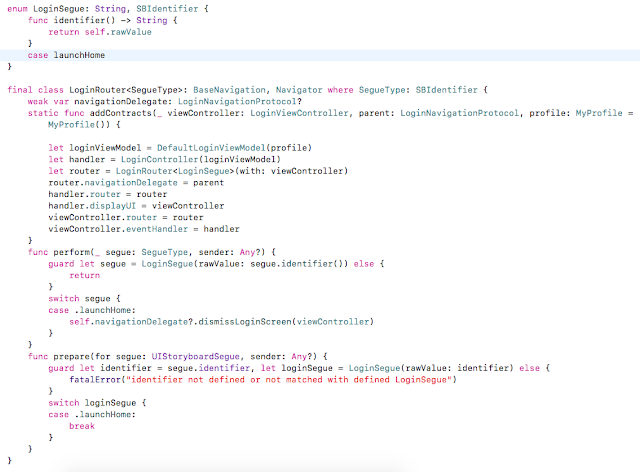

So we will always call addContracts() function when ever construct a view controller

func showLoginByRemove(_ viewController: UIViewController?) {
        let loginController = LoginViewController.getController()
        LoginRouter.addContracts(loginController, parent: self, profile: MyProfile())
        transition(fromVC: viewController, animationDuration: 0.5, toVC: loginController)
}

2. SBControl
    This class will keep all storyboard controls, and its makeups such as setting font, colours and localised texts and animations etc..

I am not repeating how to do this, Its well explained here see the section "Solution 2: Presentation Controls"

So
The VC (View Controller) can have minimum one IBOutlet reference to the Object control.

3. Presenter  - implements UIEvents protocol
    Responsible to handle user actions from View Controller. This is just a dispatcher. Handle a little business logics. Presenter will ask to viewmodel to perform the data manipulations and will return the result to the view controller using the DisplayUI protocol which is implemented by View Controller.
    Presenter will give the navigation task to the router
    Presenter will give the display task to the view controller
    Presenter will give the network operations to the service class

4. Service - optional
     Responsible to all network operations. Presenter will hold a protocol reference which is implemented by Service class

5. ViewModel
     There will be separate view models for each view. It will be responsible to handle business logic as well as the presentation logic. Both will be grouped using protocols.

6. ViewController
    Responsible to the VC life cycle. Inform all UI actions to the Presenter. ViewController implements a DisplayUI protocol.

7. UIController (optional)
    Handle the tableview/collection/text view delegates here to reduce the code in View Controller and also to distribute the functionalities.
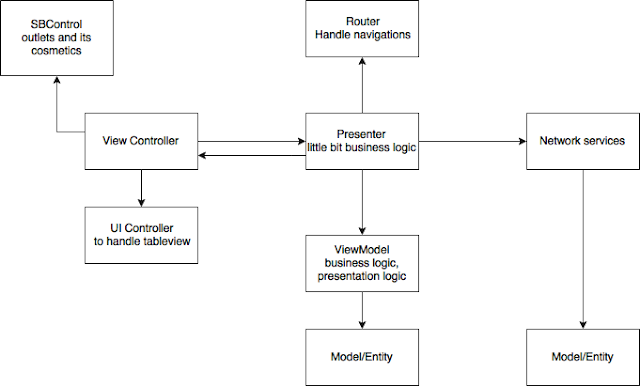


Following is the template to create the files.

https://github.com/davidpaul0880/Swift-Template

Can post more when get more free time..

But post comment if you have any questions, or need clarifications.
Tuesday, December 12, 2017

OpenOffice. - Freeze or Scroll Lock the first row or any row or column.

If you want to freeze first row, then select the second row and in menu. Window -> Freeze.

Convert Localizable.strings to a spread sheet or csv / xls file


"label.welcome" = "Welcome";//welcome message in splash screen


1. Rename the Localizable.strings file to Localizable.csv and open it in OpenOffice.

2. Give the separator as “=“ and //

Then we can save as it in our format such as .xls

Tuesday, July 11, 2017

Some iOS Interview Questions

1. What are the application states
2. UIViewController Life Cycle in the order. 
3. Whats the minimum number of constraints we need for a UIView
4. Whats the minimum number of constraints we need for a UIButton/UILabel/UIImageView
5. Can we create an app without using a UIViewController
6. spa size swift vs objc
7. performance swift vs objc
8. xml vs json
9. Swift server side
10. Tableview Prefetch protocol
11. GCD vs OperationQ
12. AssociatedType, Generic
13. Coredata - multithreading
14. Design patterns
15. MVVM
16. enum objc vs swift
17. Closure
18. weak vs unowned
19. open vs public

Monday, February 15, 2016

Error - You have selected the Production server, yet your Certificate does not appear to be the Production certificate! Please check to ensure you have the correct certificate!


This is the error got from our .NET team when trying to push messages to iOS device with AdHoc/AppStore profile.

The issue was with the certificate file (.p12). 

When we create certificate (.p12) , Always export like selecting the certificate only. see the attached image


Wednesday, December 16, 2015

Swift - Crash 'Bad Access' with Release mode Xcode 7.1.1

sortInPlace function of array is crashing when running on iOS8 6+ device. 

Its fixed with Xcode 7.2 version

Thursday, February 19, 2015

Malayalam Keyboard for iPhone and iPad


With Varamozhi, you can type in Manglish and you will see text in real Malayalam.

Varamozhi is now a custom Keyboard. Follow instructions in Setup & Usage to enable Keyboard.

https://itunes.apple.com/in/app/varamozhi/id514987251?mt=8

Sunday, December 28, 2014

Convert svg file to png file on Mac

To Convert an vector (.svg) file into a png file , we can use command line

Open Terminal application.

switch to the directory (use cd comand) where the svg file contain

qlmanage -t -s 1024 -o . myvectorfile.svg

This will create a png file named myvectorfile.svg.png with 1024*1024 dimension in the same folder.

* tested on Mac OS X 10.10.1